10-bit Streaming Private Beta
Introduction
Our private beta of 10-bit SDR & HDR support for livestreams in Louper went live on November 3, 2025. Support for 10-bit livestreams has been a very popular feature request, and we are very excited to bring 10-bit support to Louper.
Request Access
To request access and join the waiting list, submit this form. We will be rolling out access to a handful of users each week and would love to hear your feedback and requests as you use this feature.
As 10-bit support is in beta, you may encounter some bugs or limitations. We’re actively refining 10-bit support based on user feedback and internal testing, and will continue to iterate until it’s ready for general release. You will likely have questions that we do know the answers to, and some that we don’t yet know the answers to. Please reach out to support@louper.io with feedback.
How it works
- There is a new version of LDE that supports 10-bit streaming in SDR and HDR (Mac only)
- You will need a 10-bit enabled room (which comes with a new format stream key and Louper StreamConnect access) in your Louper account to stream to
- Participants using the Louper StreamConnect app (on Mac, iOS, or Apple TV) will receive the full 10-bit stream
- Participants joining your Louper room via a web browser will automatically see an 8-bit SDR version of the stream
- If a participant is viewing in both the browser and StreamConnect simultaneously, they’ll see the 8-bit SDR version in the browser and the 10-bit SDR or HDR version in StreamConnect
Downloads
Color formats and codecs
All 10-bit streams are encoded using the HEVC (also known as H265) codec. This means we can leverage the HEVC hardware encoder (in LDE) and the HEVC hardware decoder (in Louper StreamConnect) for optimal encoding and decoding performance. For 8-bit streams, H264 is the codec used. Apple’s hardware encoders are used for all streams in LDE for optimal performance.
There are three bit-depth settings in LDE:
8-bit SDR
Outputs an 8-bit 4:2:0 SDR Rec 709 H264 stream only
10-bit SDR + 8-bit SDR
Simultaneously outputs a 10-bit 4:2:0 SDR Rec 709 HEVC stream and an 8-bit 4:2:0 SDR Rec 709 H264 stream
10-bit HDR + 8-bit SDR
Simultaneously outputs a 10-bit 4:2:0 HDR Rec 2100 (PQ) HEVC stream and an 8-bit 4:2:0 SDR Rec 709 stream
Color interpretation & display
In Louper StreamConnect, we use the same color processing & display pipeline as Apple QuickTime player. This means that if you open a 10-bit ProRes file (with correct metadata tags for color space) in QuickTime player, and you stream that same file in LDE (with correct bit-depth settings), the image in QuickTime player should be identical to the image in Louper StreamConnect (the preview in the LDE window itself will probably look different).
We chose to match QuickTime Player’s color pipeline because it’s the most common reference point for reviewing 10-bit ProRes files, helping ensure that what you see in Louper StreamConnect looks the same as what you see in QuickTime Player on your Mac. If you disagree, please let us know! There are more details in the Observations section.
Setting up your 10-bit room in the Louper dashboard
- Go to the Louper web app → Livestream Rooms app.louper.io/livestream-rooms
- If you have been given access to the 10-bit beta, you should see a Room with a "10-bit Beta" label on the room tile
- Set up the room
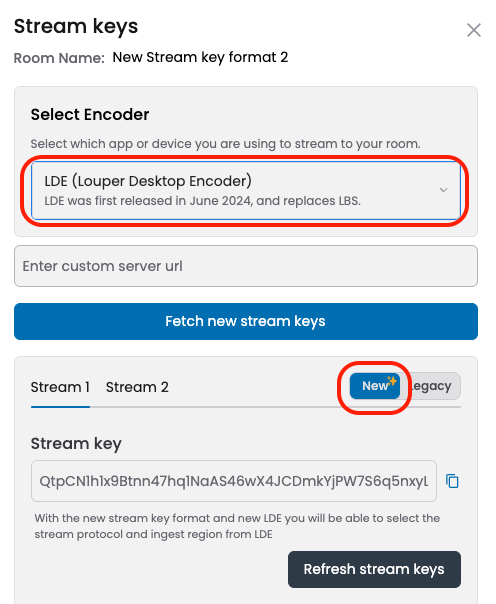
- Open the stream keys modal and ensure the “Select encoder” dropdown is set to
LDE, and that the stream key toggle is set toNew(not “Legacy”) - Copy the stream key
Streaming 10-bit from LDE
Stream Key
- Download the 10-bit beta version of LDE here
- In the main window of LDE, click
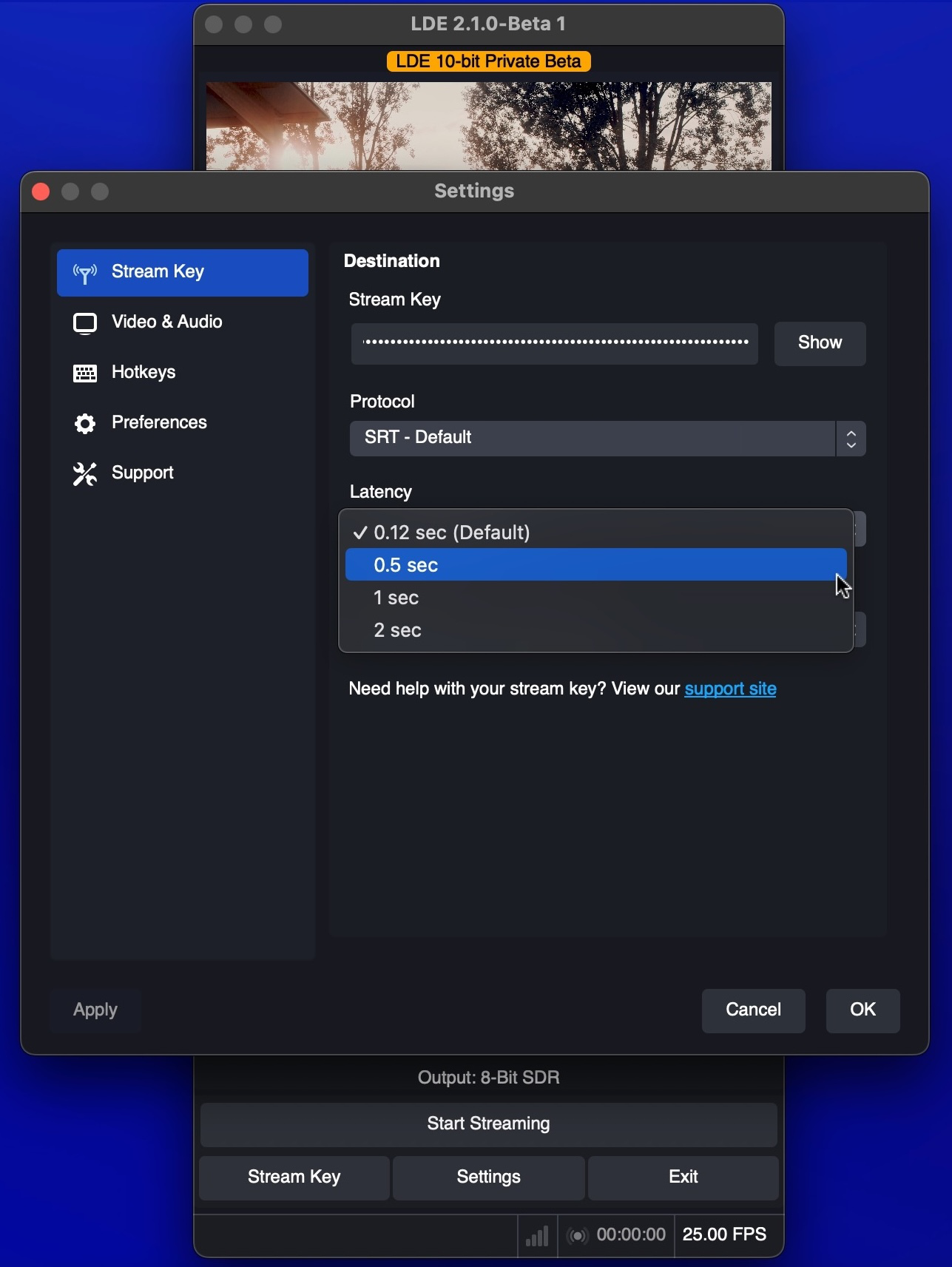
Stream keyand paste the stream key you copied earlier - The default protocol is SRT. You can now select from a list of latency options. Select a higher latency if you’d like to prioritise stream stability and smoothness over latency.
- You can also select a server region to stream to in the Region dropdown. Auto is the default and will determine your nearest server region and route your stream to it. You can force LDE to stream to a given server region by manually selecting it in the Region dropdown.
Adding a 10-bit video source to LDE
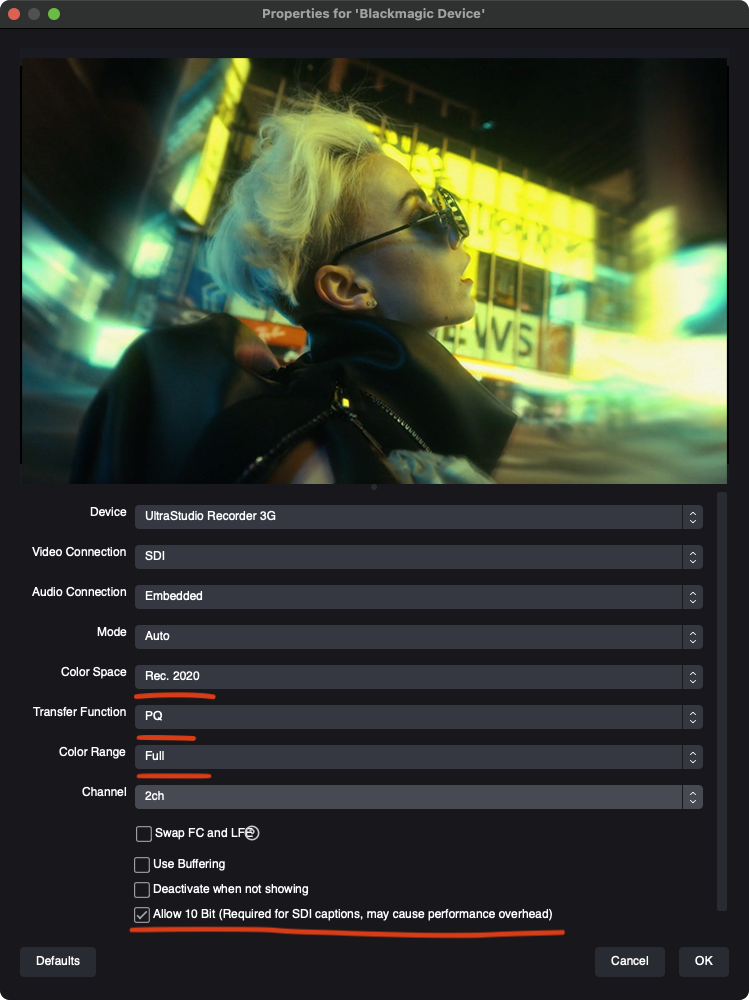
Add your 10-bit source in the Source panel. This can be a 10-bit .mov file, or more likely, a 10-bit signal from Blackmagic hardware. To add a 10-bit signal from Blackmagic hardware:
- Click the
+button in the bottom left of the Sources panel and clickBlackmagic device - Ensure your Blackmagic device is selected in the Device dropdown, then ensure the correct
Color Space,Transfer Function(if HDR), andColor Rangeis selected from the relevant dropdowns based on your workflow - Enable the checkbox that says “Allow 10 Bit”
- Click OK
10-bit Output settings
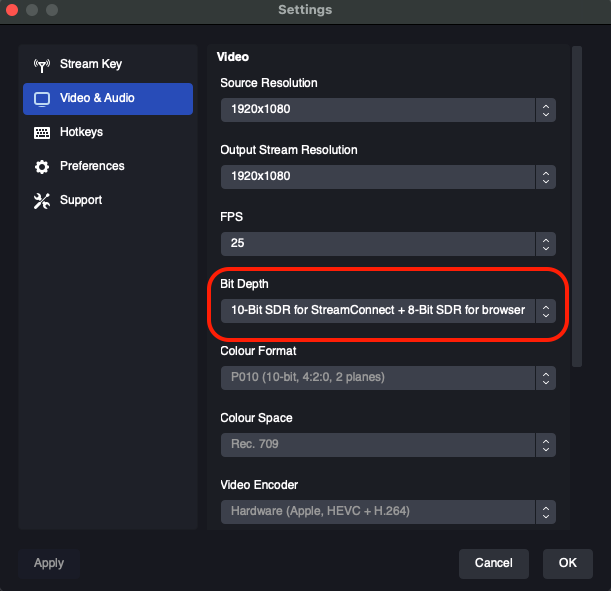
- In LDE, open Settings → Video & Audio
- In the Bit Depth dropdown, select 10-bit SDR or 10-bit HDR
- The color format, color space and video encoder dropdowns are informational only - these settings depend on the Bit Depth settings and cannot be changed.
- Click OK
Set bitrate and start streaming
- Select your desired video bitrate from the Video Bitrate dropdown. This setting applies independently to both the 10-bit (HEVC) and 8-bit (H264) streams. Because HEVC is more efficient than H264, the 10-bit version of your stream will be of higher visual quality than the 8-bit version of your stream. We suggest starting around 6 Mbps and increasing from there as needed - but remember that your participants will need sufficient bandwidth and connection strength (no or very minimal packet loss) to receive your stream smoothly.
- Click
Start streaming
When streaming in 10-bit, LDE simultaneously encodes an additional 8-bit version of the stream. Both versions use the same bitrate setting in LDE. For example, if your bitrate is set to 8 Mbps, the total output will be 16 Mbps — one 8 Mbps 10-bit stream and one 8 Mbps 8-bit stream.
Viewing 10-bit streams in Louper StreamConnect
- Download the latest version of Louper StreamConnect for Mac here, or for iOS and Apple TV on the App Store (search “Louper StreamConnect”). If you already have StreamConnect installed, please download the latest version
- Create a StreamConnect code for your room:
- In your Louper dashboard, click the Share button of your 10-bit room
- Click the StreamConnect tab, then click
Create StreamConnect Code
- Open Louper StreamConnect, enter a display name and the StreamConnect code, then click
Play stream - A dialog will appear when you are connected to a 10-bit stream. Click OK to dismiss the dialog and see the stream in all its 10-bit glory
Viewing 10-bit HDR streams in Louper StreamConnect on Apple TV requires tvOS 26 or newer. If you are streaming 10-bit HDR from LDE and you connect to the stream on an Apple TV running an earlier version of tvOS than tvOS 26, you will receive the 8-bit SDR version of the stream. 10-bit SDR streams on Apple TV do not require tvOS 26.
Observations and notes (so far)
End-to-end 10-bit Rec 709 (SDR) pipeline with DaVinci Resolve
The following settings produce an identical output in DaVinci Resolve GUI, Louper StreamConnect for Mac, and QuickTime Player.
In DaVinci Resolve
- Project Settings → Master Settings → Video Monitoring:
- (Checkbox enabled)
UseRec.709matrix for 4:2:2 SDI output
- (Checkbox enabled)
- Project Settings → Color Management → Color Space & Transformations:
- Color science:
DaVinci YRGB - Timeline color space:
Rec.709-A - Output color space:
Rec.709-A
- Color science:
In LDE
- Blackmagic Device Properties (double-click Blackmagic Source in the Sources window):
- Color Space: Default
- Color Range: Default
- Enable checkbox for
Allow 10-bit
End-to-end 10-bit Rec 2020 (PQ) / Rec 2100 (HDR) pipeline with DaVinci Resolve
The following settings produce an identical output in Louper StreamConnect for Mac and QuickTime Player, but in the DaVinci Resolve GUI, the image appears slightly darker.
In DaVinci Resolve
- Project Settings → Master Settings → Video Monitoring:
- (Checkbox enabled)
UseRec.2020matrix for 4:2:2 SDI output
- (Checkbox enabled)
- Project Settings → Color Management → Color Space & Transformations:
- Option A:
- Color science:
DaVinci YRGB - Timeline color space:
Rec.2020 ST2084 1000 nits - Output color space:
Rec.2020 ST2084 1000 nits
- Color science:
- Option B:
- Color science:
DaVinci YRGB Color Managed - ENABLE checkbox
Automatic color management - Color processing mode
HDR - Output color space
HDR PQ
- Color science:
- Option C:
- Color science:
DaVinci YRGB Color Managed - DISABLE checkbox
Automatic color management - Color processing mode
HDR Rec.2020 PQ - DISABLE checkbox “Use separate color sapce and gamma”
- Output color space
Rec.2100 ST2084
- Color science:
- Option A:
In LDE
- Blackmagic Device Properties (double-click Blackmagic Source in the Sources window):
- Color Space:
Rec. 2020 - Transfer Function:
PQ - Color Range:
Full - ENABLE checkbox for
Allow 10-bit
- Color Space:
P3 Colorspace
At the moment, P3 video is unlikely to be displayed correctly in the Louper StreamConnect. It may be too saturated. If you use P3, please let us know your findings, we still have work to do on handling P3 correctly.
Louper StreamConnect notes, Apple TV
Internally at Louper, 10-bit streams have been tested extensively in the Mac version of Louper StreamConnect, less extensively in the iOS versions (mostly on iPad Pro M4 13”), and very little on Apple TV. As such, no formal documentation exists yet for Apple TV system settings related to 10-bit palyback. We are especially keen to hear feedback from users who are testing the viewing of 10-bit streams in Louper StreamConnect, where there are very many variables (Apple TV settings, and the actual display settings of the display connected to the Apple TV).
Color Accuracy Measurements
Given that there are so many variables in workflows, hardware, and colorist preference - we’ve not yet measured color accuracy using hardware probes. If you are a colorist who would like to perform measurements and share your results with us, or suggest pipelines for us to measure, please let us know. We want to work with the colorist community to make this feature great.
Providing feedback - we want to hear from you!
Please email support@louper.io with your feedback, questions and comments. We do not expect to nail this feature on the first attempt and are relying on constructive feedback from beta testers to make 10-bit support useful for a wide number of users and use cases. Thank you!