Managing Authentication Methods
A Louper account can have multiple authentication methods linked to it. Linking additional methods ensures you can still sign in if you lose access to one of them.
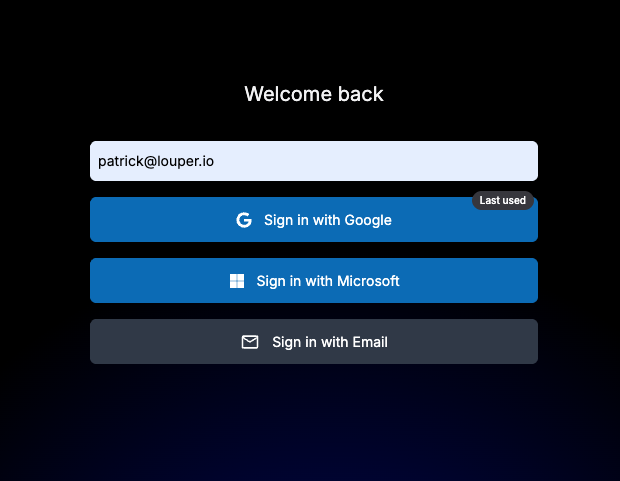
Louper supports the following sign-in methods:
- Apple
- Microsoft
- Email & Password
Looking to control sign-in across your whole team?
This page covers managing methods for your own account. If you're an admin and want to require everyone on your team (or everyone with your company's email domain) to sign in a specific way, see Enforcing Single Sign-On (SSO) methods instead.
Where to find your authentication methods
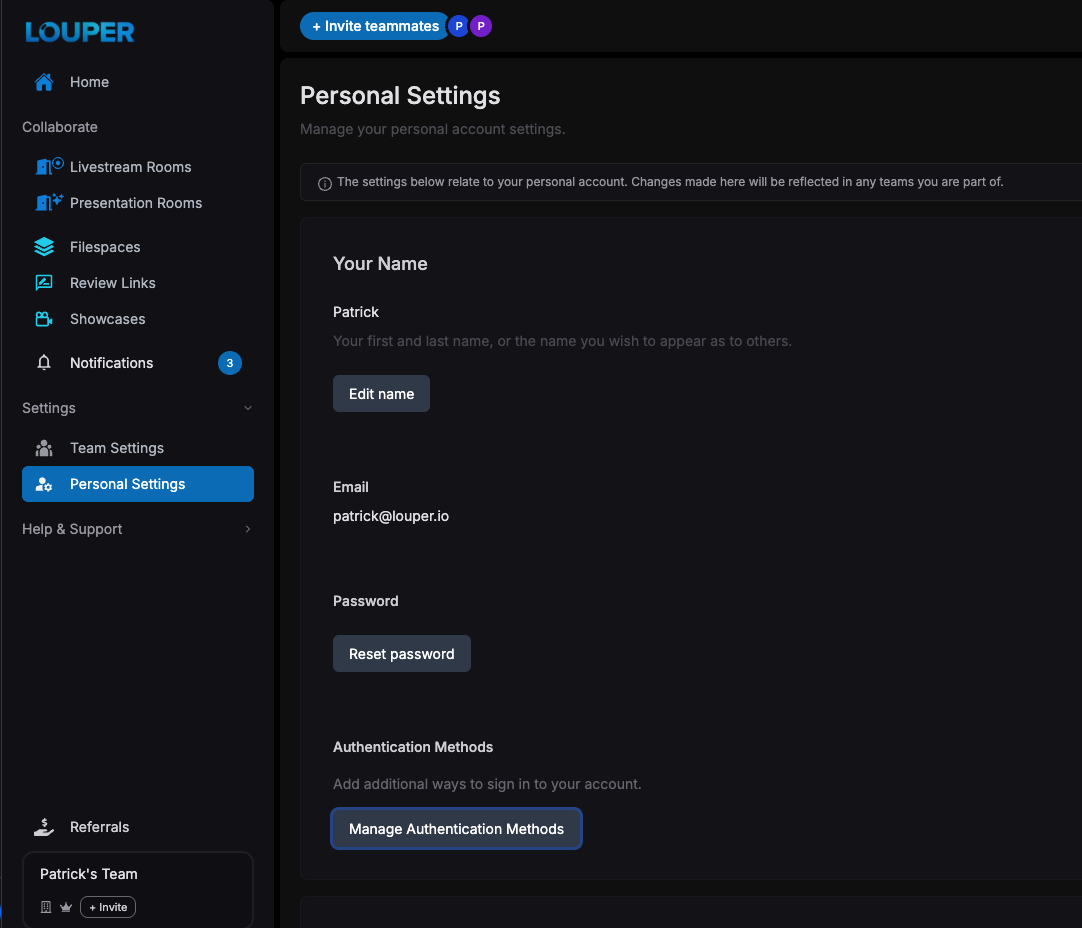
- Click on
Settingsin the sidebar and navigate toPersonal Settings - Scroll to the `Authentication Methods` section.
- Click
Manage Authentication Methods.
Verifying it's you
Before you can add or remove a method, Louper asks you to confirm your identity using your current sign-in method. This protects your account from unauthorized changes.
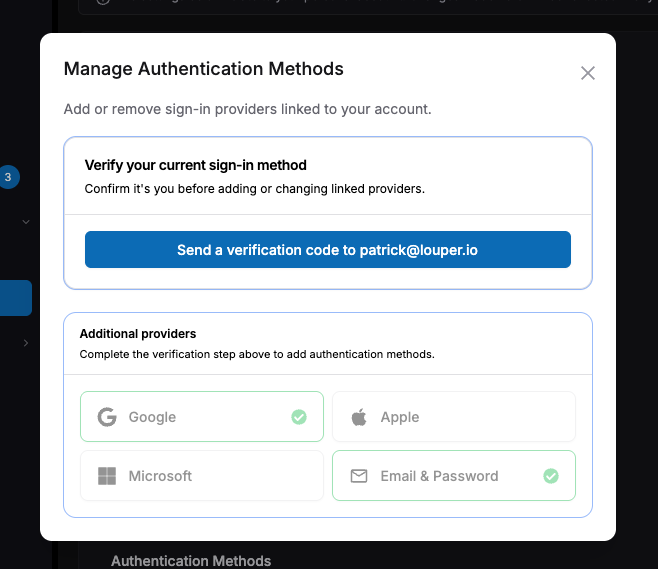
- If you currently sign in with Google, Apple, or Microsoft, you'll be asked to re-authenticate in a popup window with that provider.
- If you currently sign in with Email & Password, Louper sends a 6-digit verification code to your email address. Enter it to continue.
Once verified, you can add or remove methods for a short window (about 10 minutes) without having to verify again.
Adding an authentication method
- Complete the verification step above.
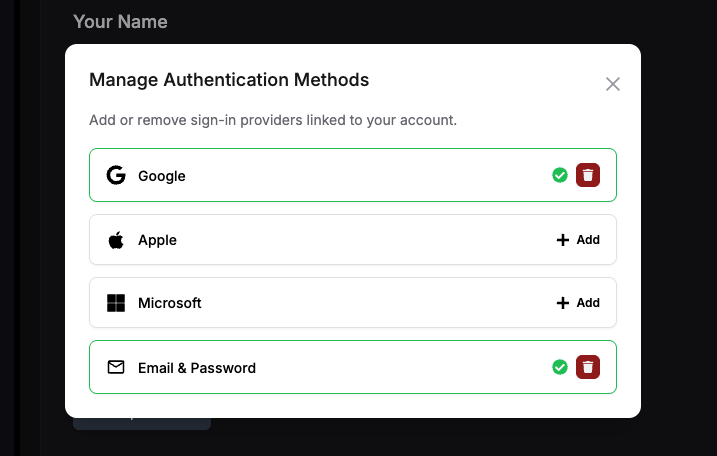
- In the list of additional providers, choose the method you want to add.
Adding Google, Apple, or Microsoft
- Click Add next to the provider.
- Sign in with that provider in the popup window.
The provider account you link must use the same email address as your Louper account. If the emails don't match, the new method will not be linked to your Louper account.
Adding Email & Password
- Click Add next to Email & Password.
- Create a password that meets all of the requirements:
- One uppercase letter
- One lowercase letter
- One number
- One special character
- Between 8 and 32 characters
- Enter the 6-digit verification code sent to your email.
- Click Link Email & Password.
After a method is linked successfully, it appears in your list with a green check and is immediately available the next time you sign in.
Removing an authentication method
- Open Manage Authentication Methods and complete verification.
- Click the trash icon next to the method you want to remove.
- Enter the 6-digit verification code sent to your email.
- Click Confirm Removal.
Frequently asked questions
Can I use different email addresses for each method? No. Every method linked to your account must share the same email address.