Creating a Signal Loop for an Audio Workflow, using Blackmagic Hardware
Streaming Audio and Video feeds from a Blackmagic Device:
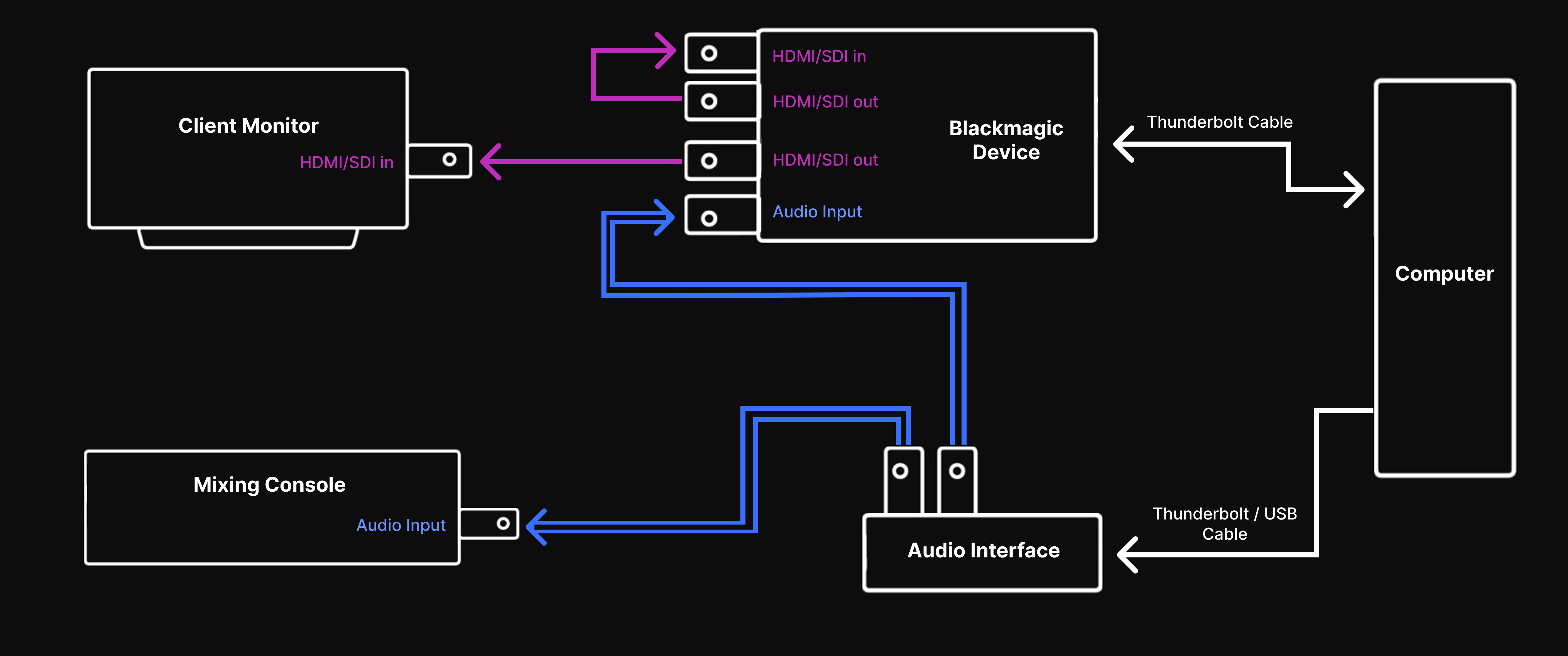
A common Pro Tools setup includes outputting the audio signal to an Audio interface, and from there routing that audio to your Mixing console. The video signal out of Pro Tools may be routed to a separate Client monitor, via your Blackmagic device. LDE can pick up an audio and video feed from your Blackmagic device, provided you have enough open ports to support a loop.
To set up your Blackmagic Device to enable LDE to stream both audio and video from Pro Tools:
- Open your Blackmagic Desktop Video app, and ensure that your audio source is not embedded, and is coming from the analogue inputs.
- Route the audio output from your Audio Interface into your Blackmagic device (using the 1/4inch ports)
- On your Blackmagic device, create a signal loop of your video output from Pro Tools by looping your SDI output to SDI input ports, or HDMI output to HDMI input ports.
- If you do not have enough ports on your device, you may need to use your Client Monitor’s output port, or a separate device to complete the loop. Please see a list of possible loop structures here.
Blackmagic Device flow for Audio and Video Feed:
Streaming an Audio feed from a Blackmagic Device
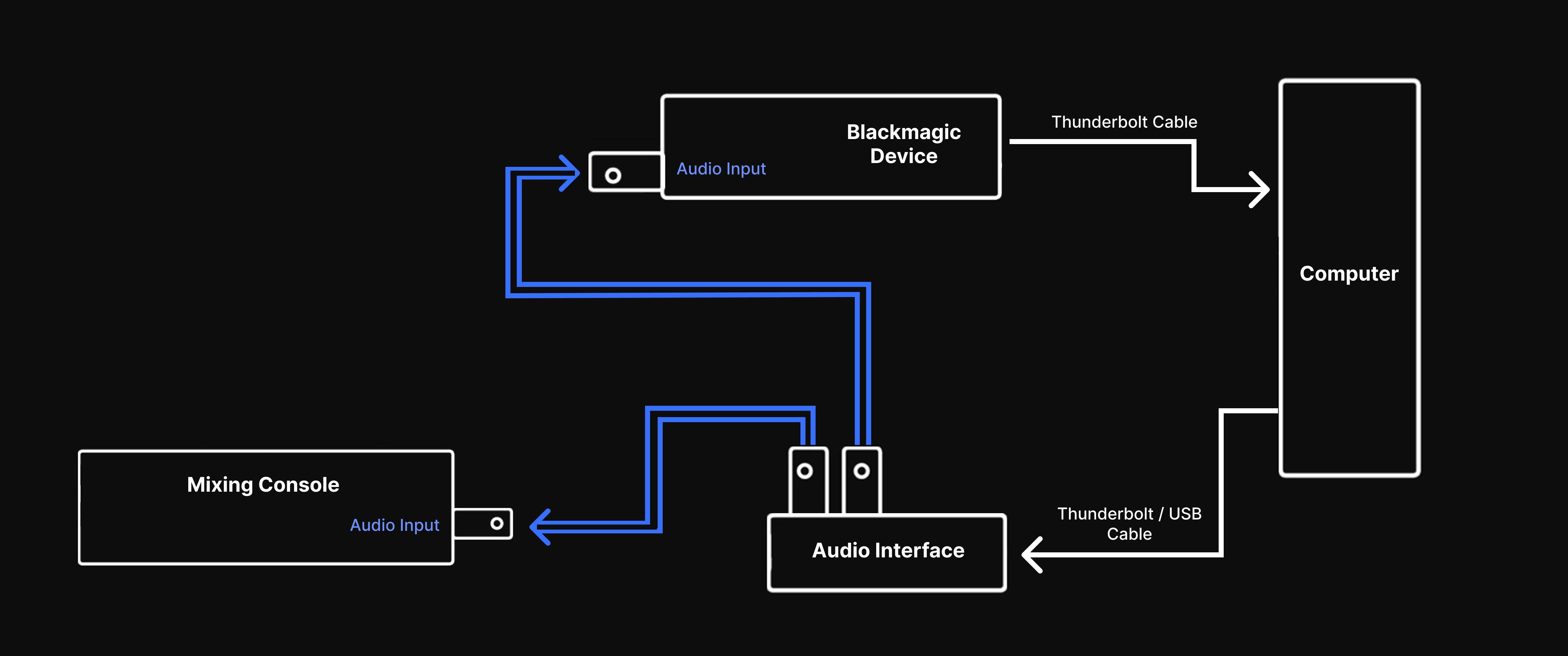
If you are not routing your video feed to a separate monitor, you could use your Blackmagic device to capture your audio feed from your Audio interface, and stream your video directly from the Pro Tools video player using the Screen Capture option in LDE.
To set up your Blackmagic Device to enable LDE to stream your audio output from Pro Tools:
- Open your Blackmagic Desktop Video app, and ensure that your audio source is not embedded, and is coming from the analogue inputs.
- Route the audio output from your Audio Interface into your Blackmagic device (using the 1/4inch ports)
Enable Video Monitoring in Pro Tools:
LDE can stream a screen capture of your video source in sync with your audio output from Pro Tools.
- In Pro Tools, go to Setup › Playback Engine › Settings and check that
Video Engineis enabled - Go to Window › Video to open a local monitor of the video source
- For a higher quality output, this video should be as large as possible: either full-screen on a separate monitor, or maximized and positioned to the side of your screen.
Blackmagic Device flow for Audio Feed only: