Enforcing Single Sign-On (SSO) methods
Enterprise teams can claim a domain and enforce Google, Apple, or Microsoft SSO for all users signing up with a specified domain email address.
Enforcing Single Sign-On (SSO) requires teammates using an email address associated with a verified domain to authenticate using the selected SSO provider.
How to enforce single sign-on (SSO)
1. Verify your domain
Click on
Settingsin the sidebar and navigate to Team Settings, then select the Domain Verification tab.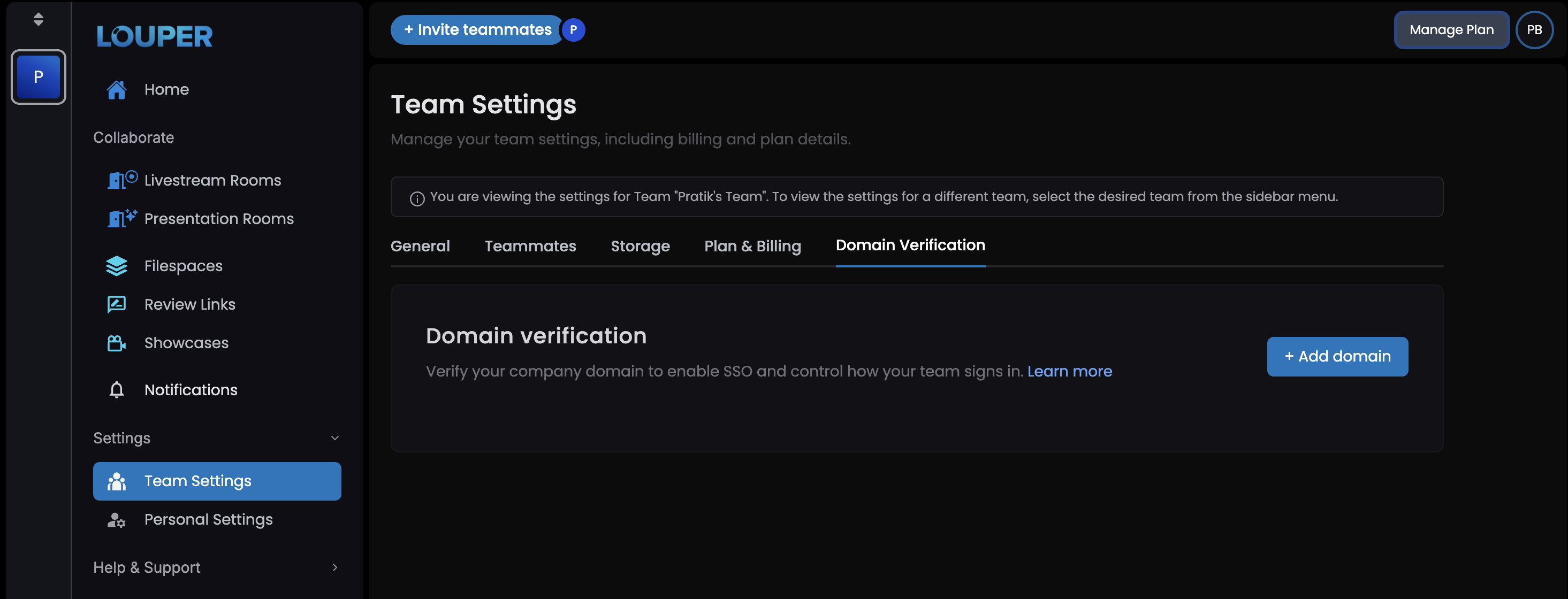
Click the
+ Add domainbutton and enter the domain you want to verify.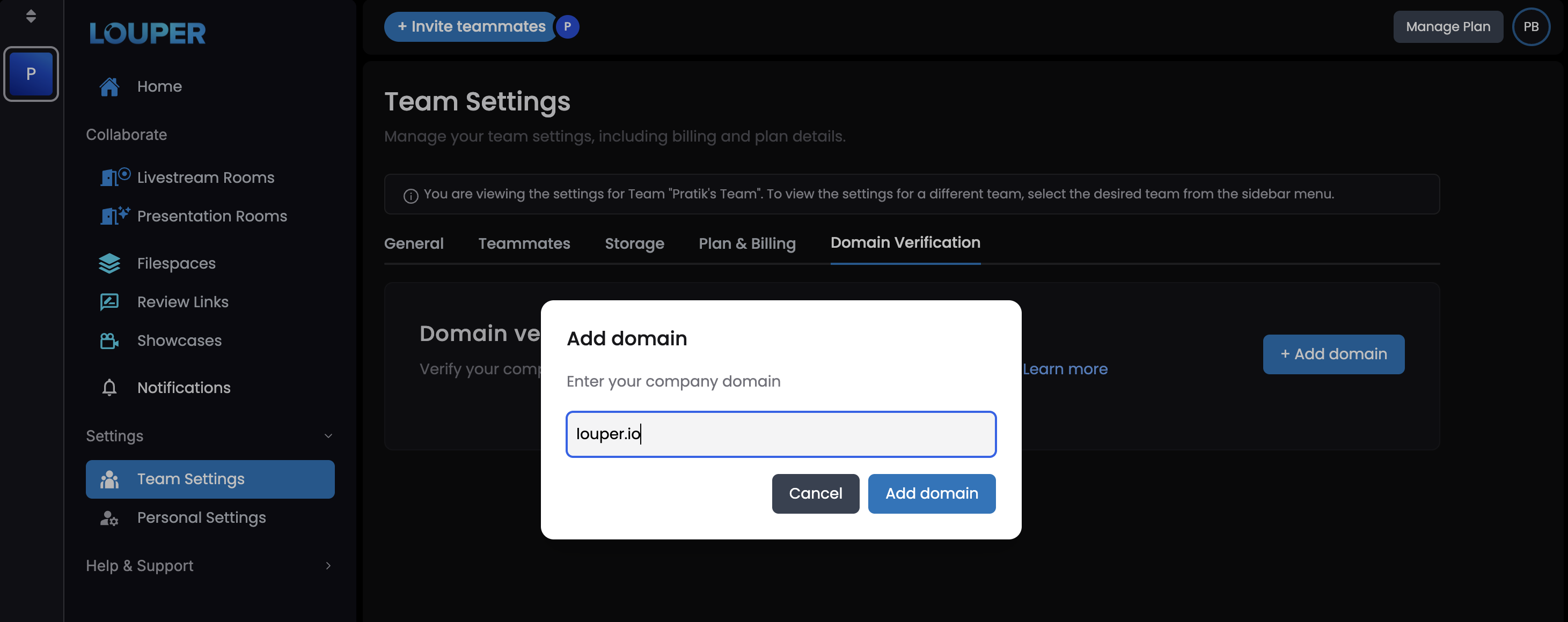
Louper will generate
TXTrecords for your domain. Add theseTXTrecords to your domain’s DNS settings.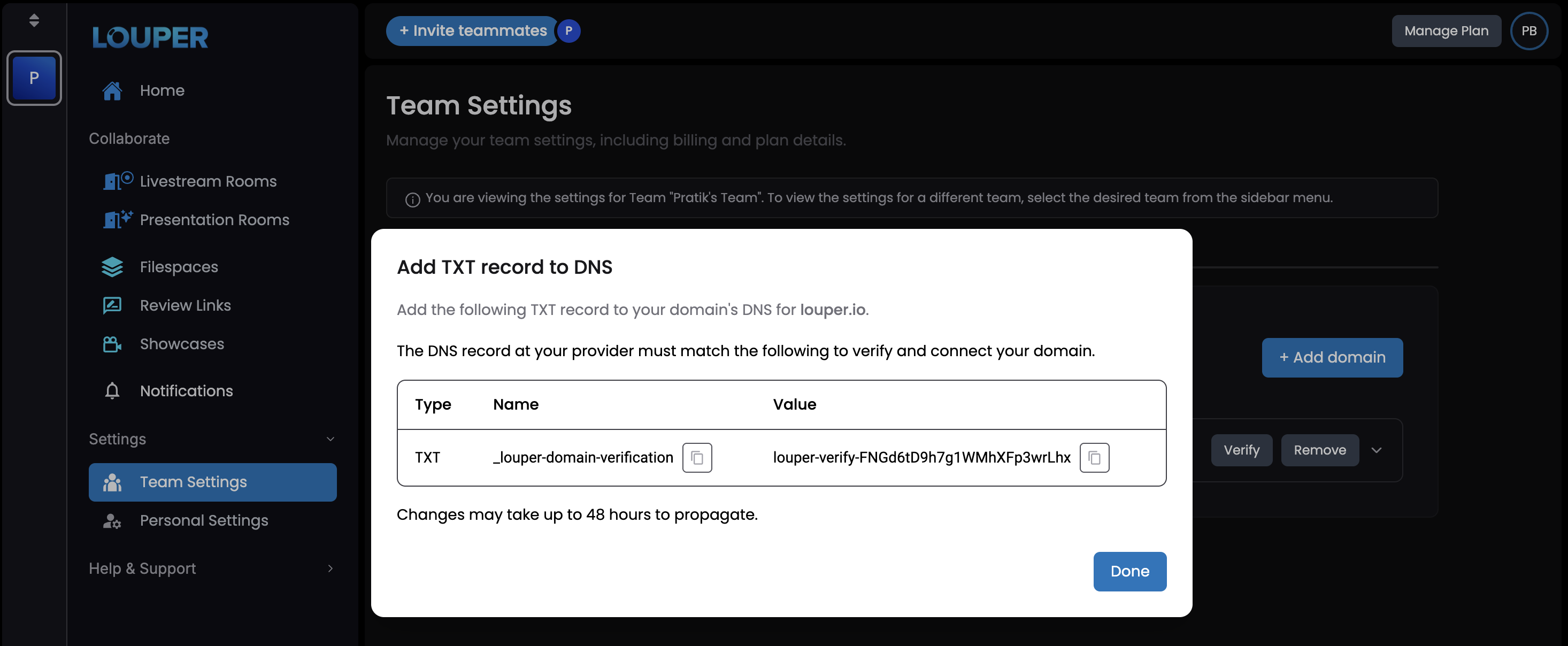
After adding the records, return to the Domain Verification tab and click
Verify. Once verification is complete, the domain status will be marked as verified.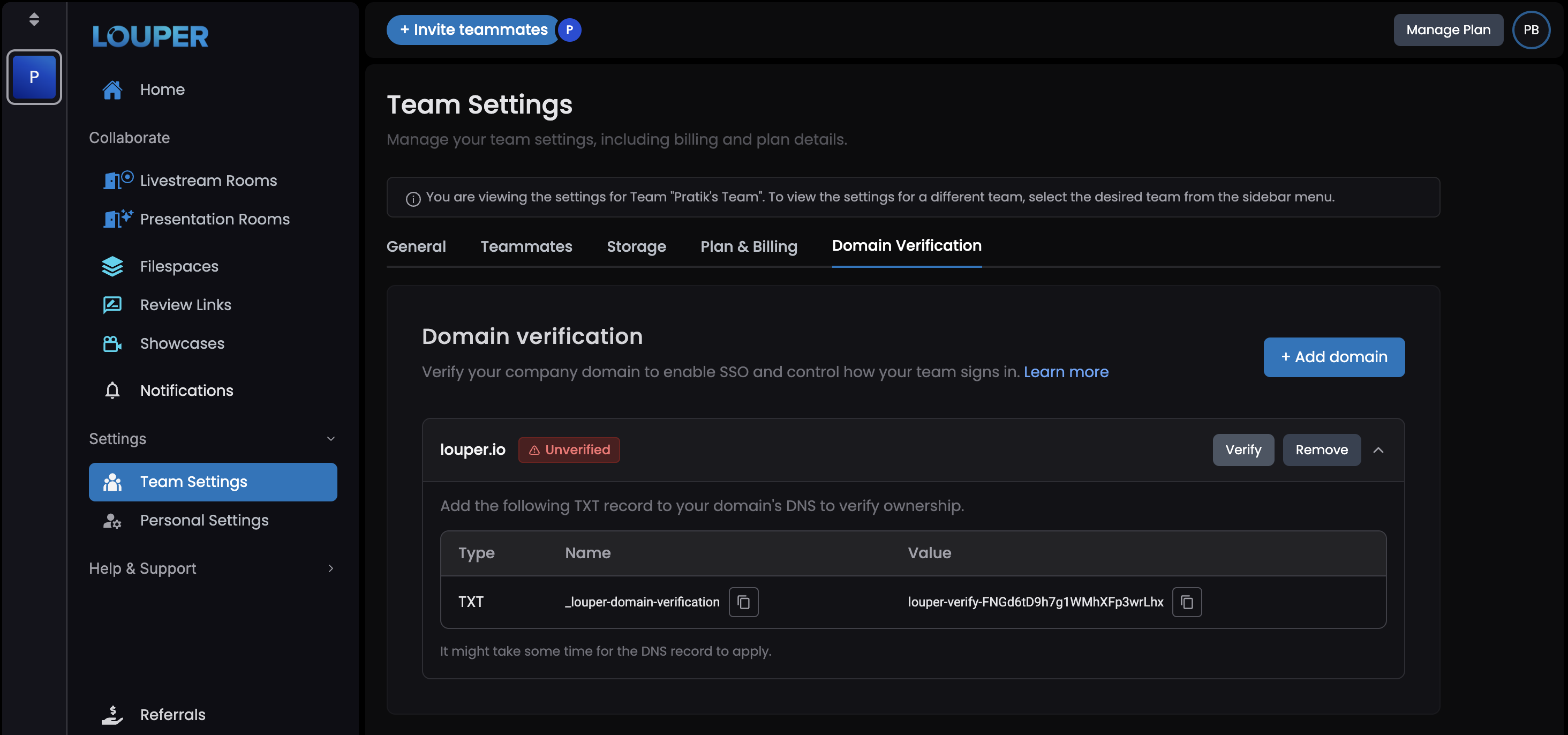
2. Enable SSO enforcement
After your domain is verified, click the
Enforce SSObutton.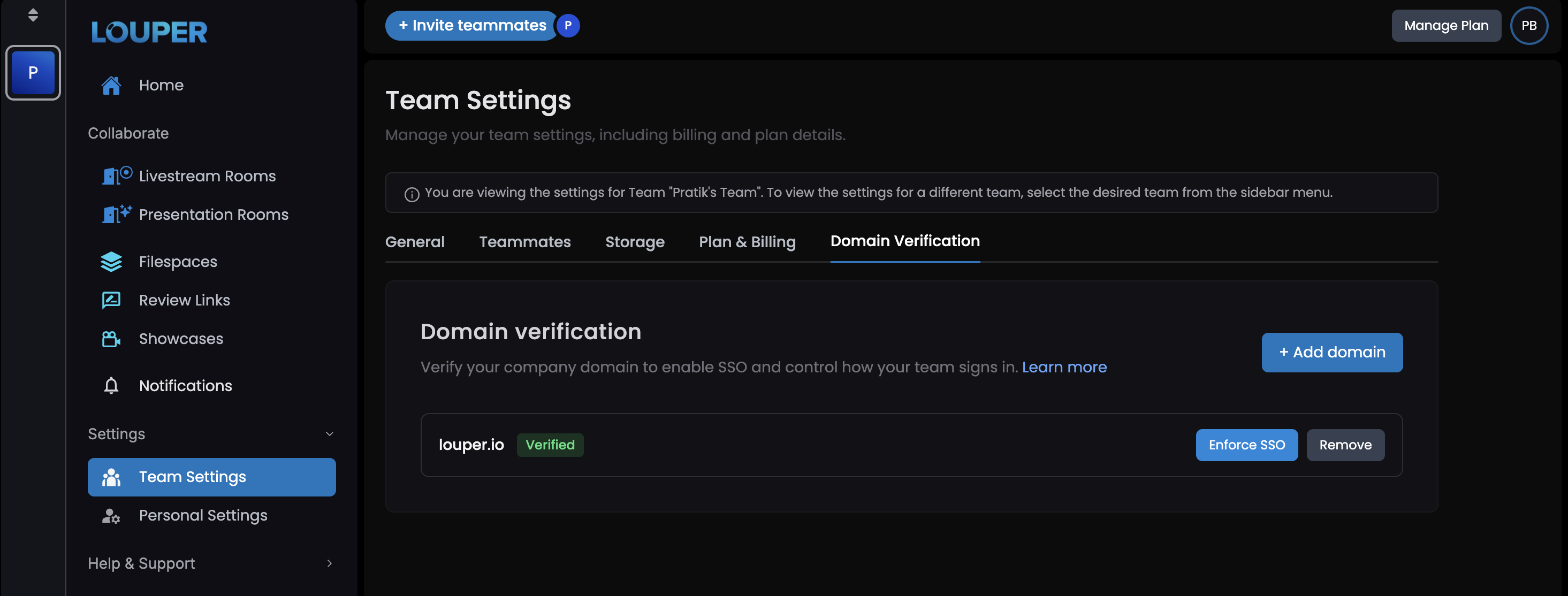
Select the SSO method you want to require for users with email addresses matching the verified domain.
Click
Enable enforcement.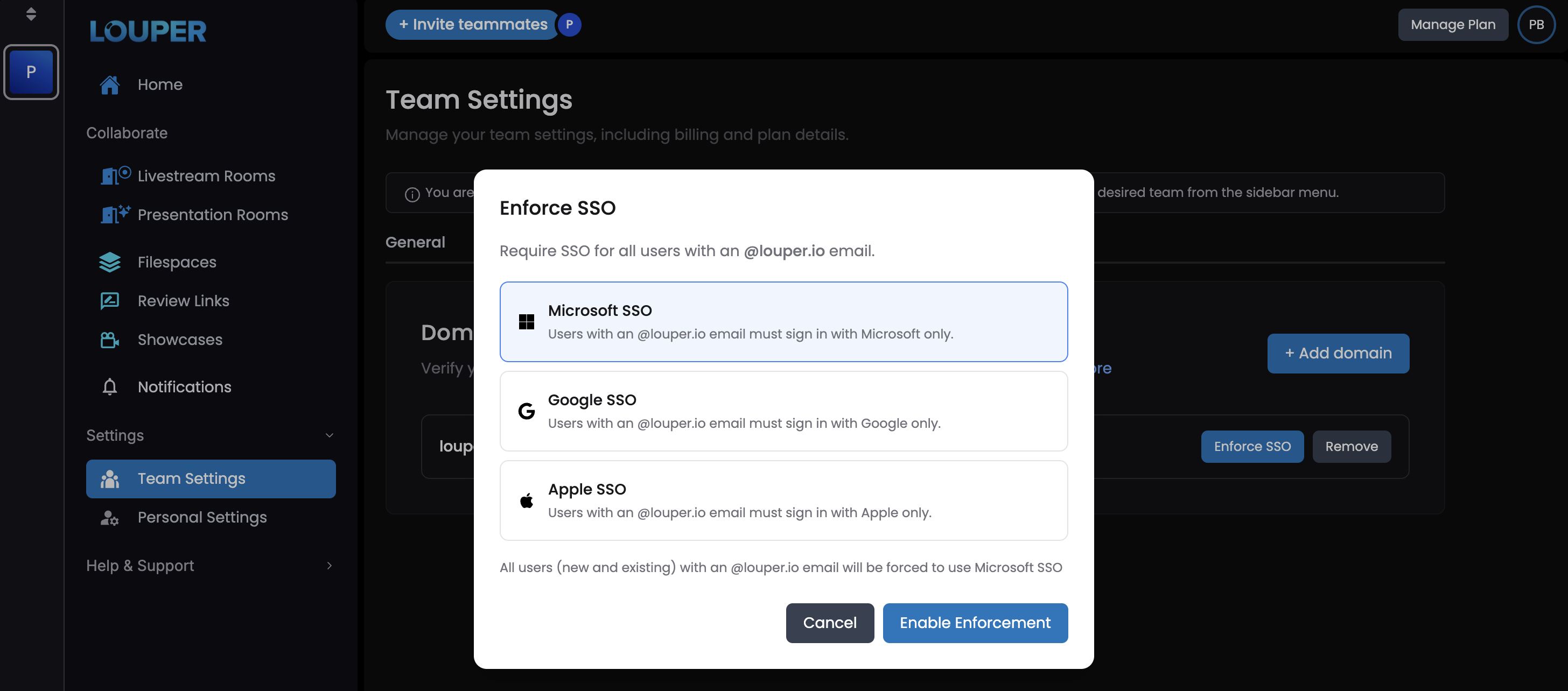
All users with an email addresses under the verified domain will be required to sign in or sign up using the selected SSO method.
Notes
- DNS changes may take up to 48 hours to fully propagate, depending on your domain provider and TTL settings.
- Once SSO enforcement is enabled, all users with matching domain email addresses must authenticate using the selected SSO provider.
- Only Team Owners and Admins can configure and enforce SSO.