Client-side Watermarking
Client-side watermarking shows identifying details over content viewed in Louper rooms, via the Louper StreamConnect app, and in review links and showcases. Enterprise teams can enable this setting to add an additional layer of protection to the content they stream or share with collaborators.
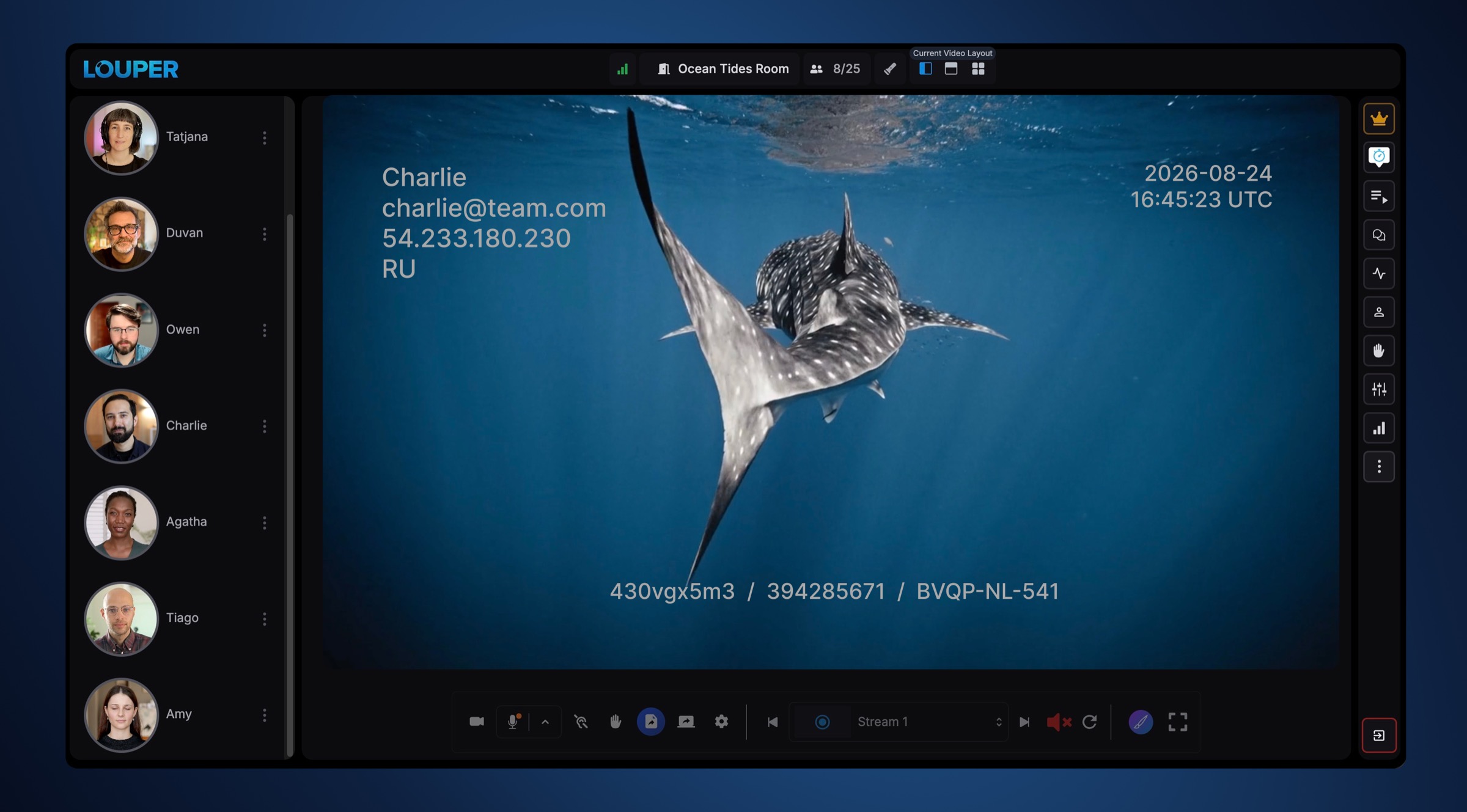
Client-side watermarking in rooms
Client-side watermarking in rooms shows details identifying the viewer and the session. Each participant sees their own unique watermark, including: name, email address, IP address, date and time, Room ID, Session ID and Team ID.
In rooms, the watermark is shown over all content viewed in the player, including livestreams, uploaded files, screenshares, and files streamed from a desktop using drag-and-drop file-streaming. The client-side watermark will also appear over content viewed via the Louper StreamConnect app.
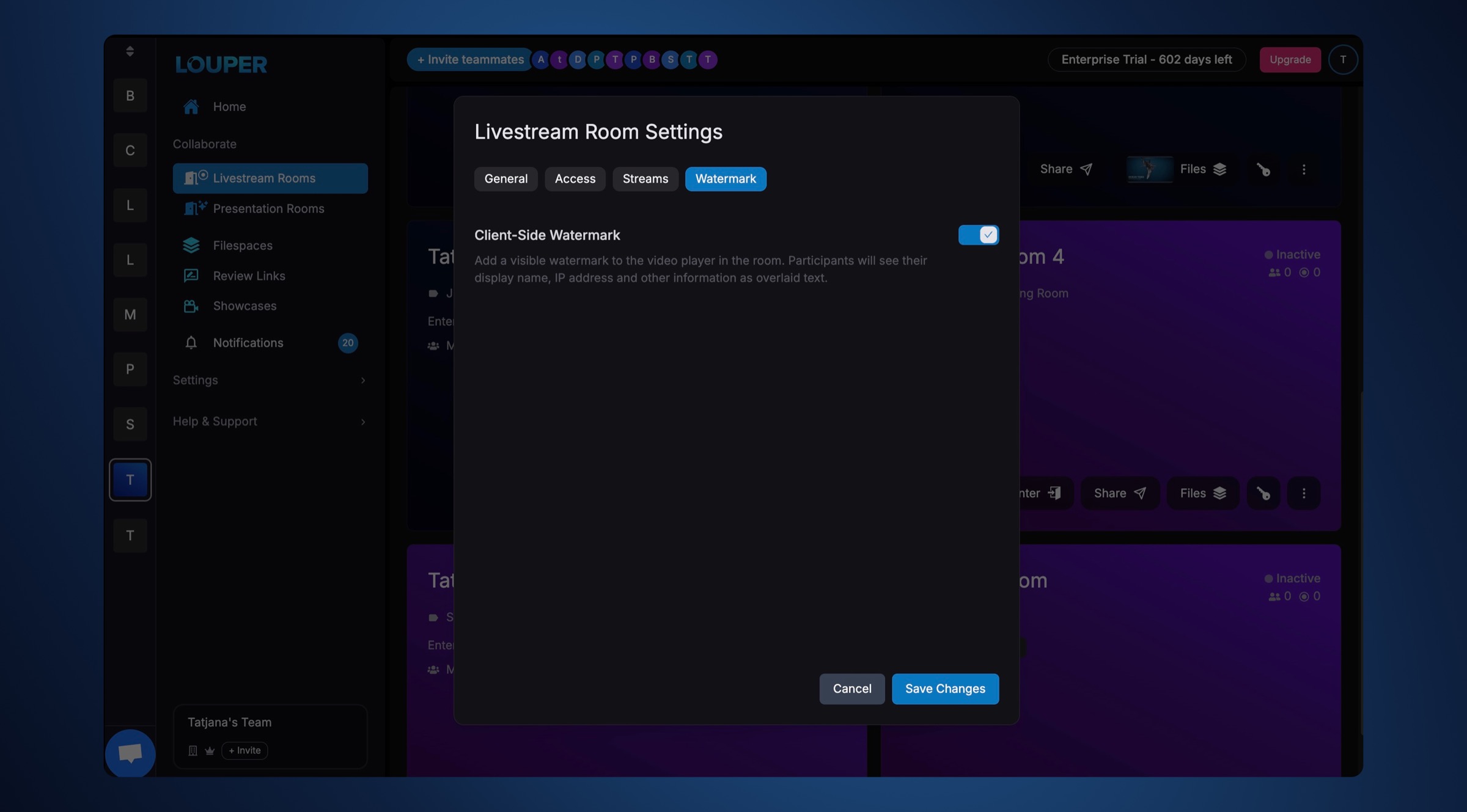
Enable client-side watermarking in rooms
- Navigate to the room tile and click the three-dot menu.
- Select
Room Settingsin the dropdown menu. - Under the
Watermarktab, toggleClient-side Watermarkon.
Client-side watermarking in review links and showcases
Enterprise teams can enable client-side watermarking on review links and showcases to add an additional layer of protection to shared content.
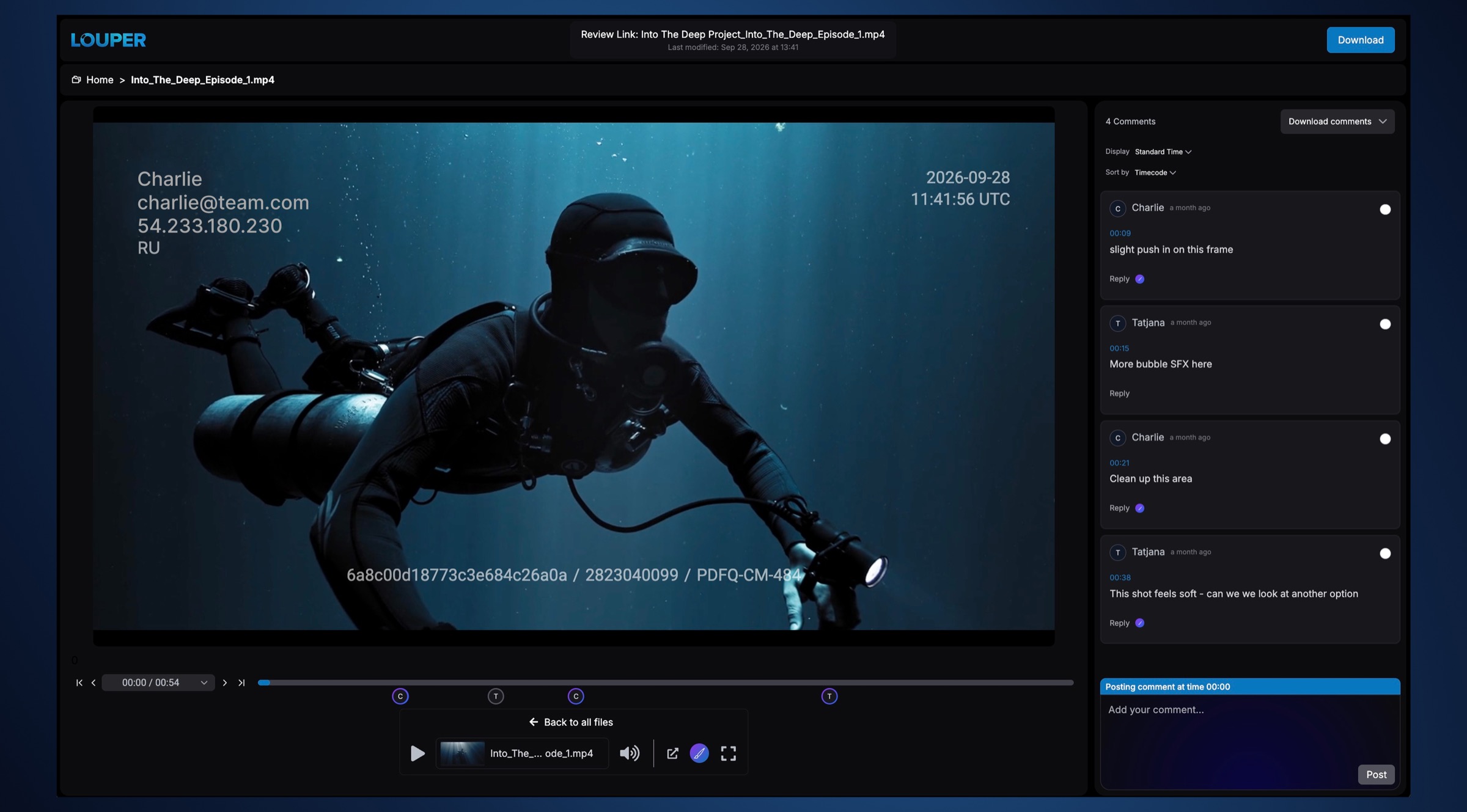
To enable client-side watermarking in a review link or showcase
- Create a new link, or edit an existing link to open the link's settings page.
- Toggle
Client-side Watermarkon. - Click
Doneto save your changes. - Anyone viewing content in that review link or showcase will now see identifying information displayed over the content.
Downloading content from a link with Client-side Watermarking enabled will deliver the original files, without the watermark.