Multi-Camera output from Premiere is stretched
If you’re streaming a Multi-Camera workflow from Premiere, there are three possible output modes to work with. Selecting the wrong combination of Program Monitor settings can result in a stretched or incorrectly scaled video feed being sent to Louper.
To configure your preferred output mode in Premiere Pro, open the Program Monitor Settings (the wrench button) and choose one of the following configurations:
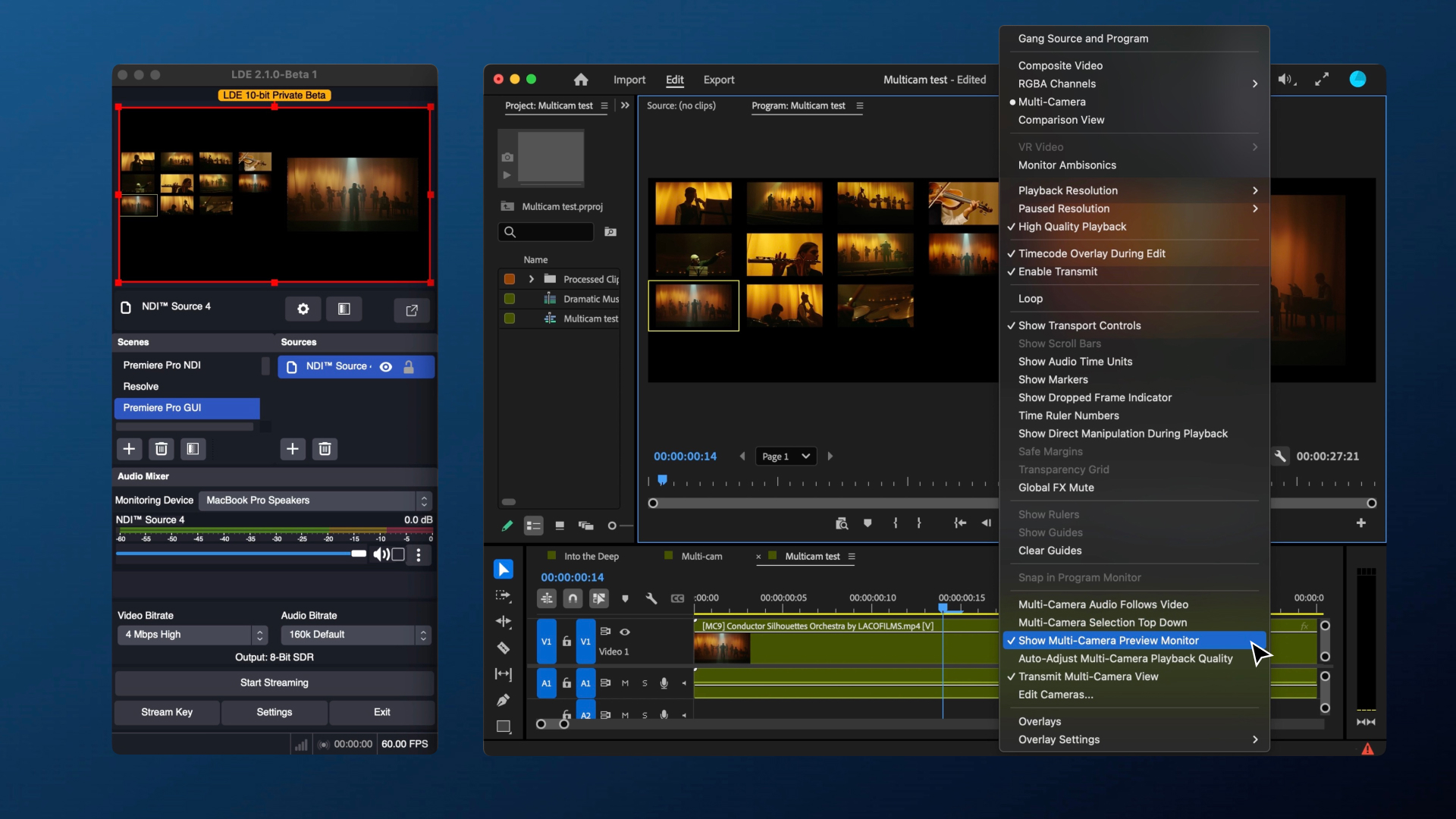
Mode 1: Full Multi-Cam workspace
Program Monitor settings:
- Ensure
Multi-Camerais selected. - Ensure
Show Multi-Camera Preview Monitoris checked. - Ensure
Transmit Multi-Camera Viewis checked.
Premiere Pro will now be set up to transmit a side-by-side view of the Multi-Cam grid alongside the Program Monitor output of your active edit.
Mode 2: Multi-Cam grid only
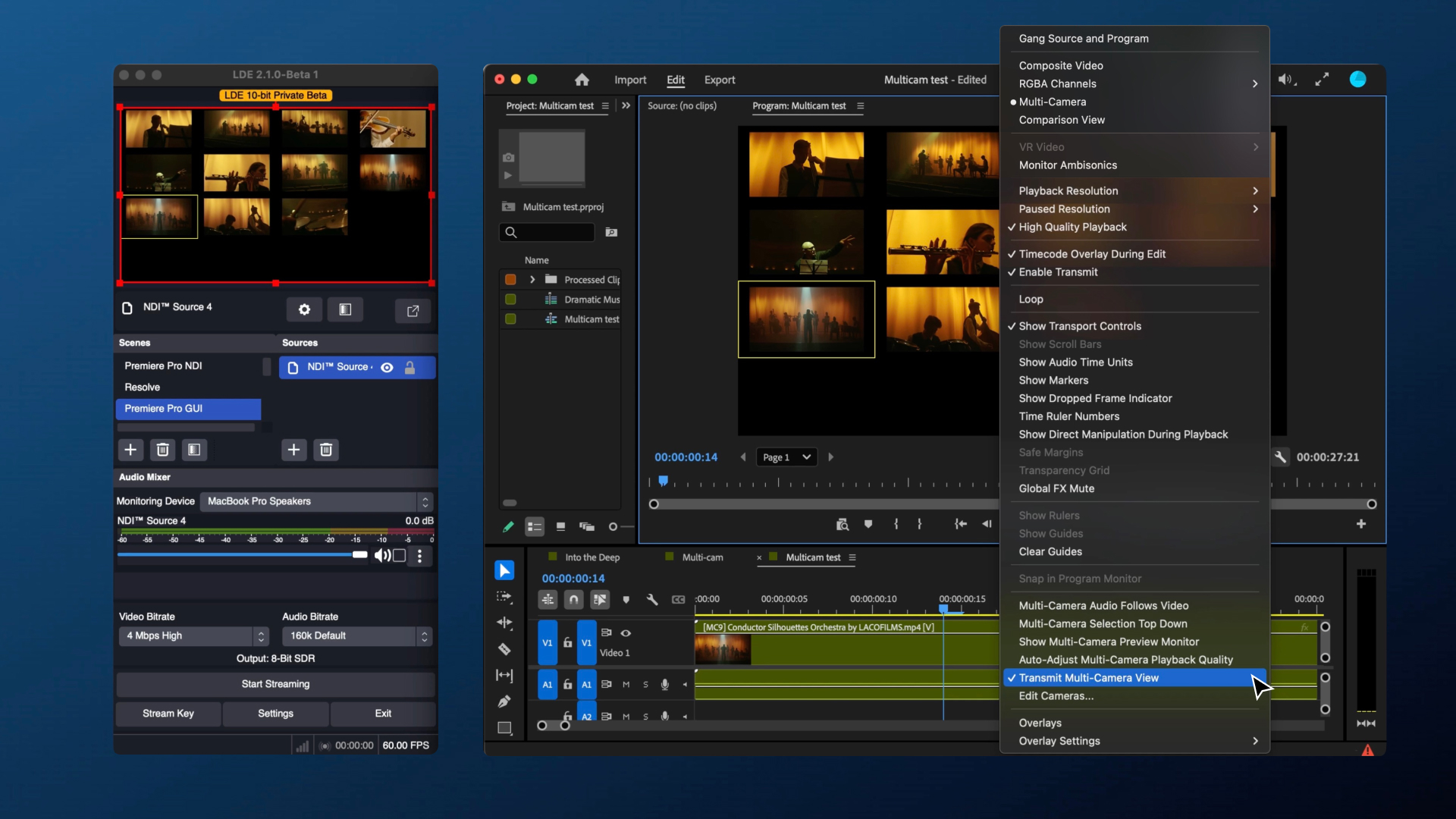
Program Monitor settings:
- Ensure
Multi-Camerais selected. - Ensure
Show Multi-Camera Preview Monitoris unchecked. - Ensure
Transmit Multi-Camera Viewis checked.
Premiere Pro will now be set up to transmit a full-screen grid of all the camera angles in your Multi-Cam sequence.
Mode 3: Program output only
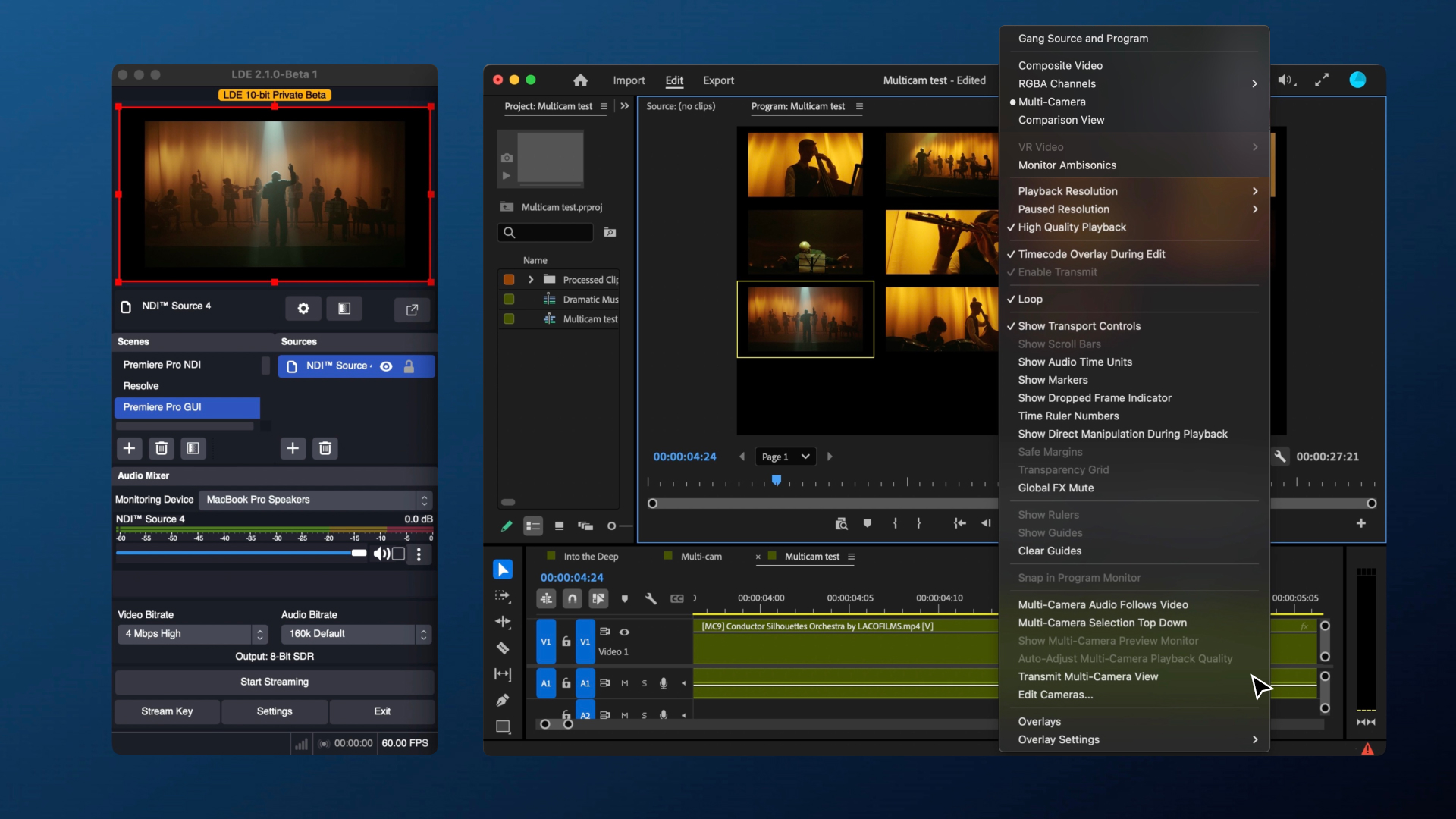
Program Monitor settings:
- Ensure
Multi-Camerais selected. - Ensure
Show Multi-Camera Preview Monitoris unchecked. - Ensure
Transmit Multi-Camera Viewis unchecked.
Premiere Pro will now be set up to transmit only the full-screen Program Monitor output of your active edit.